
Intentional deletion guide
How to Delete Unwanted Photos Without Second-Guessing
By Omer Yom Tov, creator of KeepYeet · Updated July 15, 2026
An unwanted photo is not always a bad photo. It may be a temporary screenshot, an accidental pocket shot, a weaker take from a burst of attempts, or an image that once served a purpose but no longer does. Defining those categories before cleanup makes each decision faster and more consistent.
Avoid setting a deletion quota. A quota encourages borderline choices just to reach a number. Instead, work through one context at a time, keep the strongest or most meaningful items, and treat uncertainty as a reason to keep an item until a later review.
A practical process
How to delete unwanted photos
- 1
Define what unwanted means today
Choose one category such as expired screenshots, accidental captures, weak attempts, or media from a specific month that no longer has practical or personal value.
- 2
Compare value, not perfection
Ask whether the item preserves a memory, communicates useful information, or is difficult to replace. Keep it when the answer is unclear.
- 3
Separate decisions from deletion
Mark the unwanted items during the session, then inspect them together before confirming. This pause helps catch choices made too quickly.
Keep the session useful
A quick cleanup checklist
- Accidental or unusable captures
- Temporary reference images that have expired
- Weaker takes when another photo tells the story better
- Media that is easy to replace and no longer useful
- A final check for people, documents, or moments that matter
Where KeepYeet fits
KeepYeet keeps unwanted-photo decisions personal
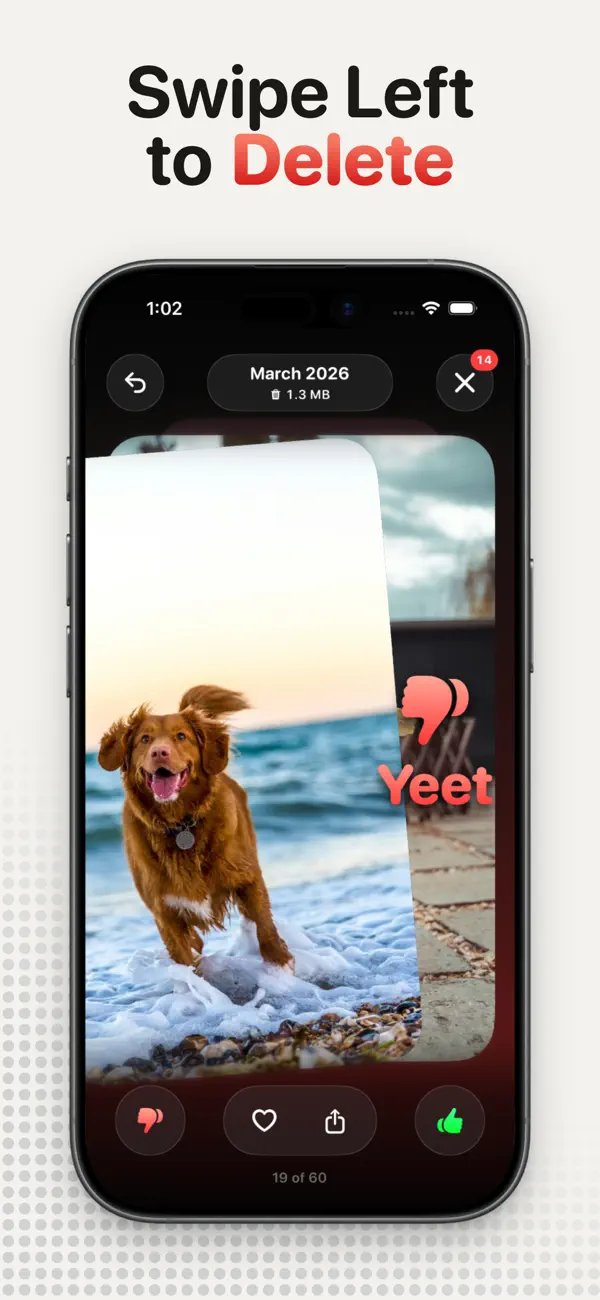
In KeepYeet, you examine each item and swipe right to keep it or left to mark it for deletion. Filters for months, screenshots, videos, albums, and Recents let you apply one clear definition of unwanted media at a time.
The review step keeps the decision phase separate from final deletion. Recovery then depends on the active photo library: Apple Photos documents 30 days in Recently Deleted, while Google Photos documents 60 days for backed-up items and 30 days for unbacked items.
Questions people ask
delete unwanted photos FAQ
What counts as an unwanted photo?
It can be an accidental shot, an outdated reference, a weaker version of a moment, or any image that no longer has enough practical or personal value to keep.
How can I delete unwanted photos without deleting good ones?
Use a narrow category, make every choice manually, keep uncertain items, and review all marked photos before final deletion.
Can deleted photos be recovered?
Recovery depends on the device's photo library and backup state. Apple Photos documents 30 days in Recently Deleted; Google Photos documents 60 days for backed-up items and 30 days for unbacked items.
Verified references
Platform and product sources
- Apple Support: Delete photos on iPhone or iPad — Apple explains deletion, Recently Deleted, recovery, and the 30-day retention period.
- Google Photos Help: Delete photos and videos — Google explains Trash behavior and how retention differs by backup state.