
Swipe cleanup guide
Swipe Delete Photos Without Losing Control
By Omer Yom Tov, creator of KeepYeet · Updated July 15, 2026
A swipe-based cleanup turns a crowded photo library into a series of simple decisions. Instead of selecting tiny thumbnails in bulk, you look at one item at a time and decide whether it still deserves space in your library. That slower decision at the item level can make the full cleanup feel faster because there is less menu hunting and less second-guessing.
The useful version of this method still includes a safety checkpoint. A left swipe should mark an item for deletion, not remove it before you can inspect the full list. Work in a narrow category or month, stop when your attention fades, and review the marked items together before confirming the session.
A practical process
How to swipe delete photos
- 1
Choose one focused batch
Start with Recents, screenshots, videos, one album, or one month. A clear boundary keeps the session manageable and makes it easier to remember the context behind each item.
- 2
Use one gesture for each decision
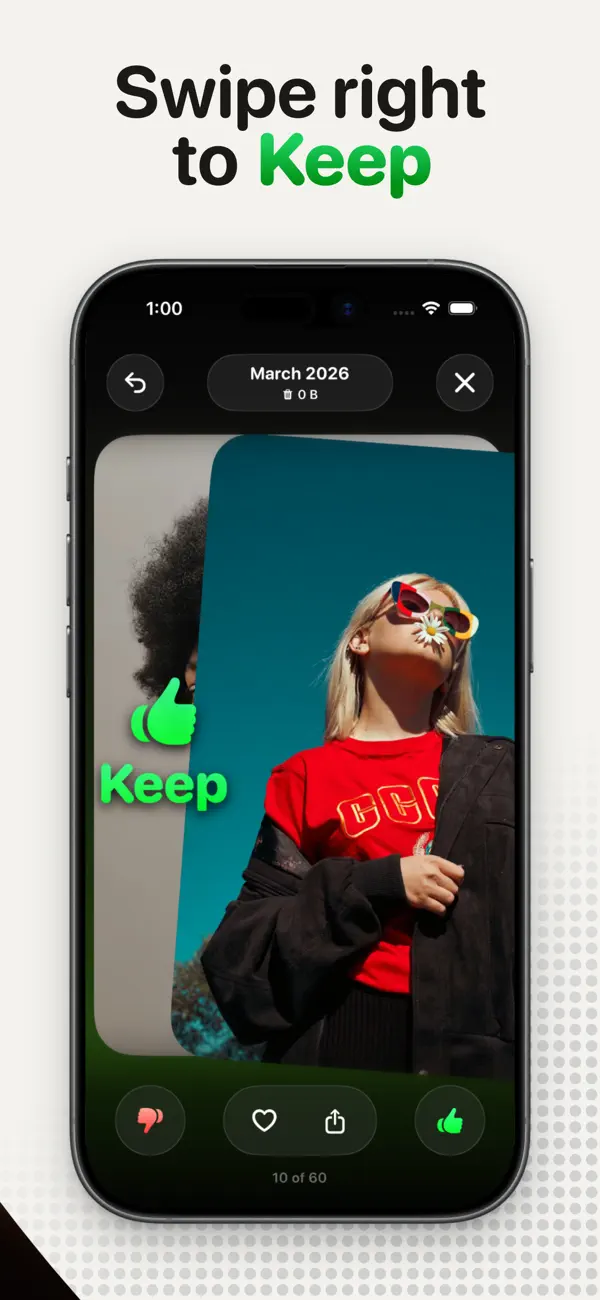
Swipe right to keep an item and left to mark it for deletion. Make the decision based on whether the item is useful, meaningful, or worth the storage it occupies.
- 3
Review before you remove
Inspect the complete deletion list before confirming it. Return anything uncertain to the keep side, then finish the session only when the remaining choices feel deliberate.
Keep the session useful
A quick cleanup checklist
- Pick a category or month before the first swipe
- Keep the item when the decision is genuinely uncertain
- Pause when repeated decisions start to feel automatic
- Inspect every item marked for deletion
- Check progress and storage reclaimed after the session
Where KeepYeet fits
How KeepYeet makes swipe cleanup deliberate
KeepYeet combines focused library filters with swipe-based review. Swipe right to keep and left to mark for deletion, then narrow the library with month, screenshot, video, album, and Recents filters.
Before final deletion, KeepYeet gives you a review step for the items you marked. No account is required, photo review stays on-device, and visible progress helps you end a session with a concrete result instead of an unfinished feeling.
Questions people ask
swipe delete photos FAQ
Which way do I swipe to keep or delete a photo?
In KeepYeet, swipe right to keep an item and left to mark it for deletion. The marked items are reviewed before final removal.
Are photos deleted immediately after a left swipe?
No. A left swipe adds the item to the deletion choices for that session, and the review step lets you inspect those choices before confirming them.
How many photos should I review in one session?
Use attention rather than a fixed number as the limit. A short, accurate session is more useful than continuing until every decision becomes automatic.
Verified references
Platform and product sources
- KeepYeet on the Apple App Store — The public listing is the source for KeepYeet's current product behavior, compatibility, and privacy disclosures.
- Apple Support: Delete photos on iPhone or iPad — Apple explains deletion, Recently Deleted, recovery, and the 30-day retention period.
- Google Photos Help: Delete photos and videos — Google explains Trash behavior and how retention differs by backup state.